Switching from Xtreme HD IPTV: How to Test Real Picture Quality
Leaving Xtreme HD IPTV? Don't judge a new service by its channel count or the "HD" label. Here's how to check resolution, frame rate and bitrate in your app, which TV settings help, and how to run a fair picture test.
by Devora TV Team, Technical support & editorialPublished on 2 min read

"HD" and "4K" are on every IPTV advert. But when you move from Xtreme HD IPTV to another service, what counts is how the picture actually looks on your TV, especially during fast sport.
This guide doesn't judge Xtreme HD IPTV. It shows you how to test picture quality properly, so you compare services on what you see, not on labels.
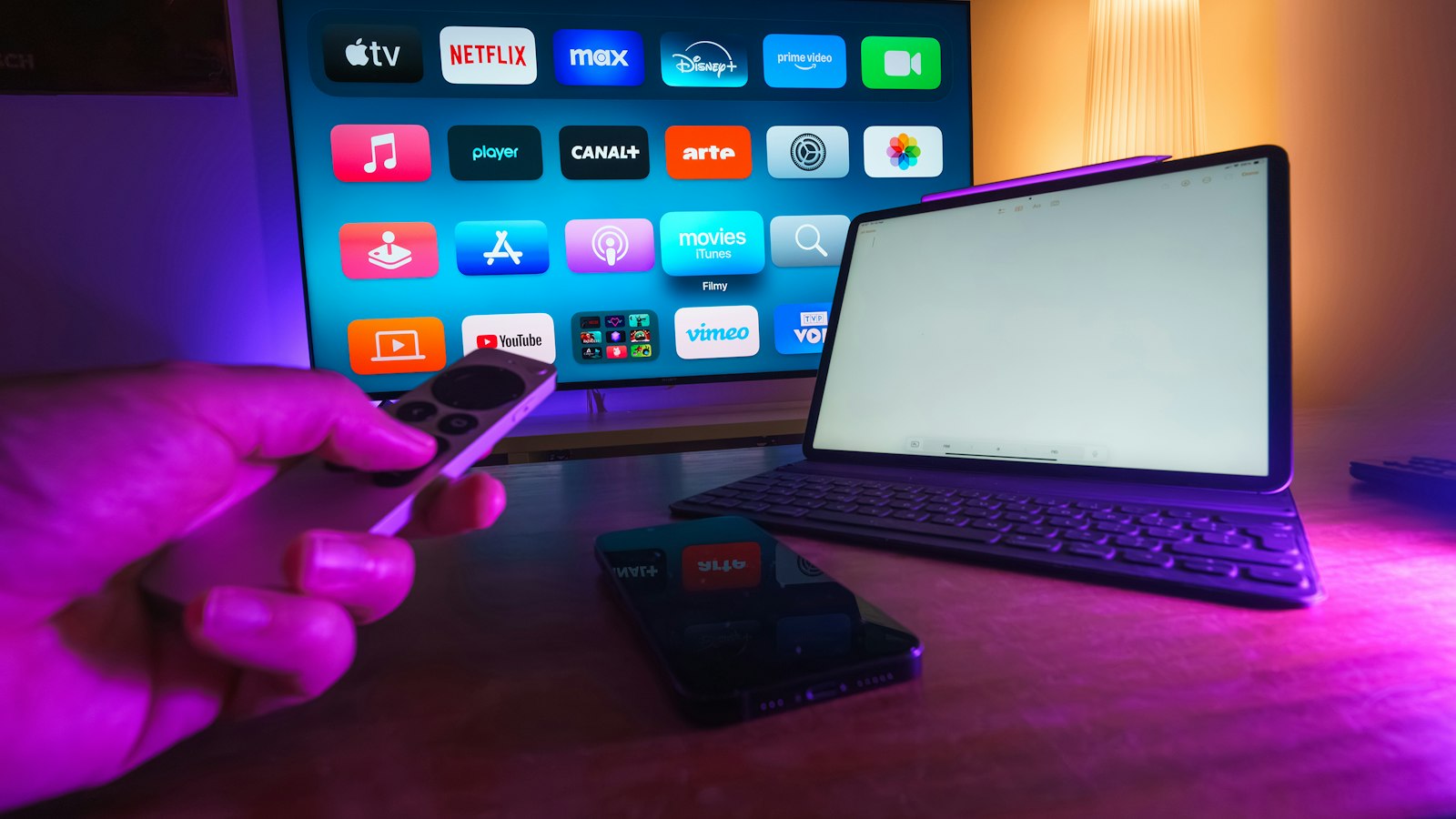
1. Check what's actually being streamed
Most IPTV players can show stream information:
- TiviMate: while watching, open the menu and look for the stream or channel info.
- IPTV Smarters: use the info or options button during playback.
- VLC: Tools → Codec information.
Look at three things:
- Resolution: 1280×720 (HD), 1920×1080 (Full HD) or 3840×2160 (4K).
- Frame rate: for sport, 50 or 60 frames per second looks much smoother than 25.
- Bitrate (if shown): a higher bitrate usually means fewer blocks in fast scenes.
2. Test with the right content
- Live football or ice hockey: fast movement shows up any weakness.
- A dark film scene: watch for blocks in the shadows.
- A 4K channel or film: only if your TV and device support 4K.
Watch each for at least 10 minutes.
3. Make sure your device can handle it
A 4K stream needs a device that supports 4K, such as a Fire TV Stick 4K or a recent Android TV box. On an older HD-only stick, 4K channels will be downscaled or stutter.
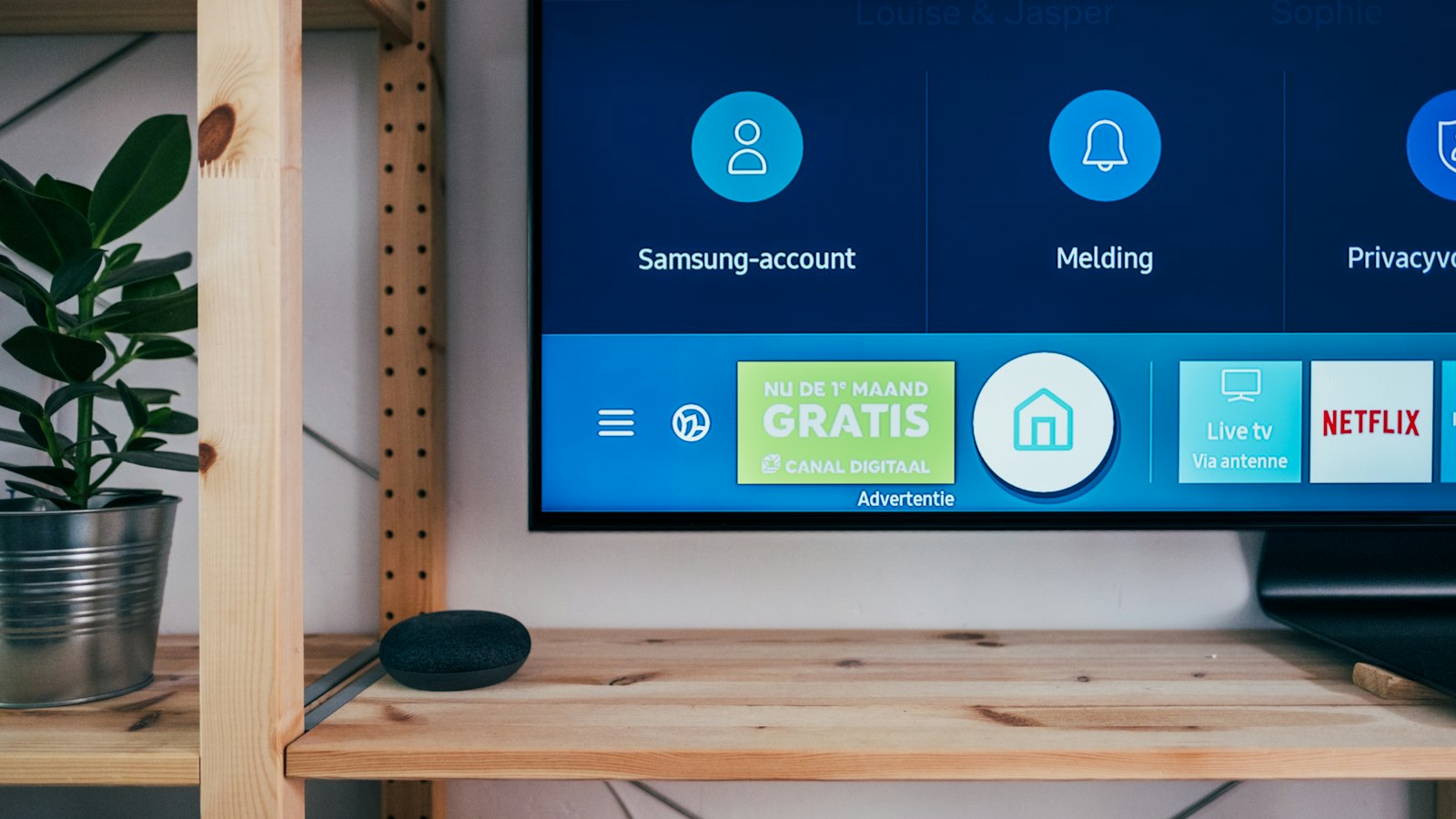
4. Check your TV settings
- Picture mode: choose "Standard", "Movie" or "Filmmaker"; avoid "Vivid" for a fair comparison.
- Motion smoothing: try it on and off for sport. Some people like it, others find it unnatural.
- Resolution output of the stick: set it to match your TV (for example 4K at 50 or 60 Hz).
5. Rule out your network
Run a speed test next to the TV: around 10 Mbit/s for HD and 25 Mbit/s for 4K per screen. Use a cable if you can. Otherwise you're testing your Wi-Fi, not the provider.
6. Compare side by side
Add the new service as a second playlist in your app and switch between the same channel on both. That's the fairest comparison.
Common questions
Why does a "4K" channel look soft?
The device or TV may not be set to 4K, the bitrate may be low, or your connection may not keep up. Check all three.
Is 50 fps really better for sport?
Yes. Fast movement looks noticeably smoother at 50 or 60 frames per second.
Do I need a new TV?
No. For HD and Full HD, any modern TV will do. For 4K you need a 4K TV and a 4K device.
Move to Devora TV
Devora TV gives you 50,000+ live channels and 200,000+ films and series, with full EPG and catch-up. Start with a 24-hour free trial, run the picture test above, then choose €12.99 per month or €79.99 per year. Our support team helps you 24/7.
Updated on


