Stopping Magis TV: How to Clean Your Device and Switch Safely
Installed Magis TV or another APK app and want to stop? Here's how to remove the app completely, switch off unknown sources, check permissions and passwords, and move safely to apps from the official stores.
by Devora TV Team, Technical support & editorialPublished on 3 min read

Installed Magis TV as an APK and want to stop? It's a good idea to do it properly. An app installed from outside the official stores can leave behind settings and permissions you no longer need. This guide cleans up your device step by step, then helps you switch safely.
We're not claiming Magis TV itself is harmful. These steps apply to any app you installed through "unknown sources".
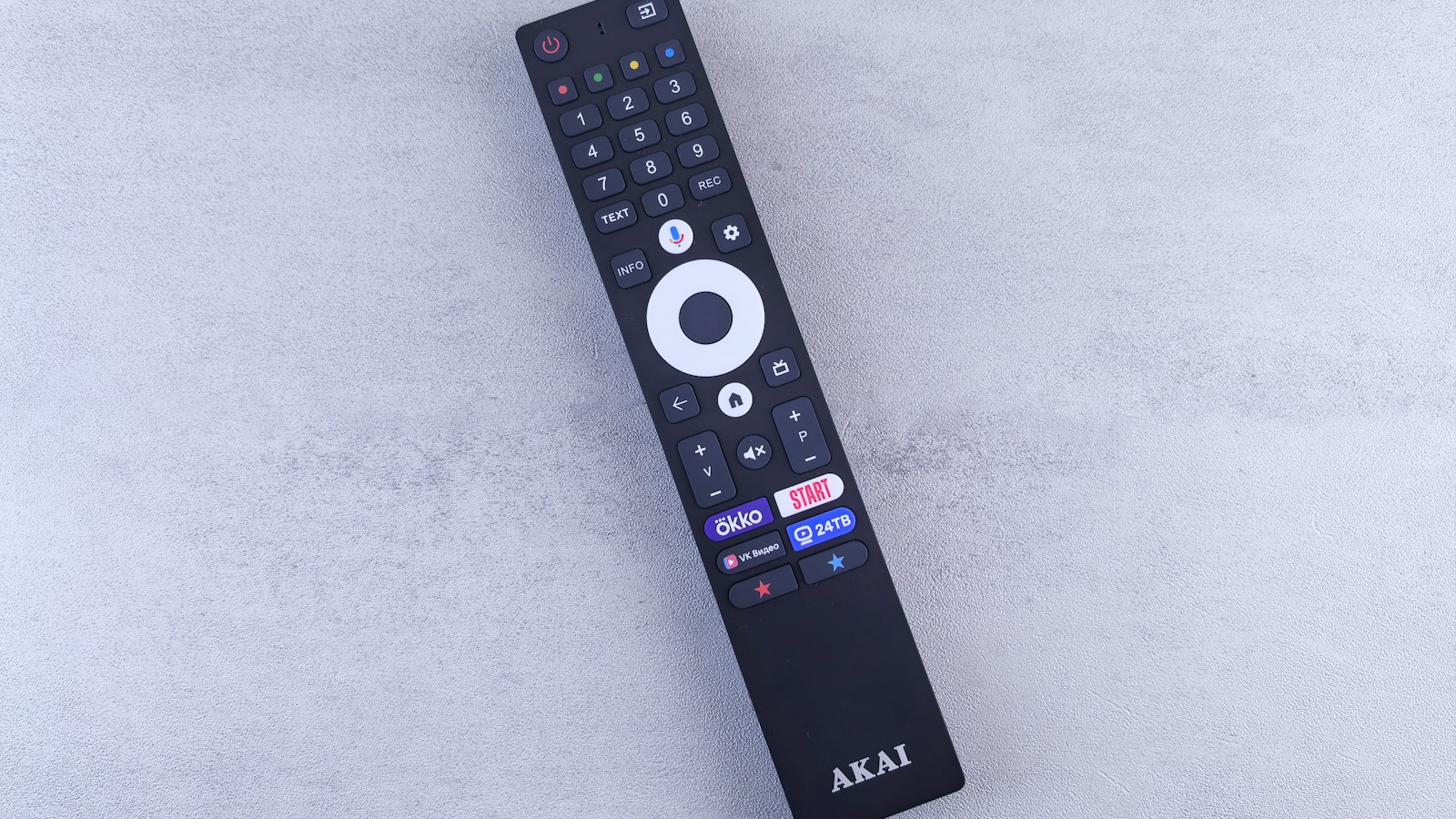
Step 1: remove the app completely
On Android TV / Google TV:
- Go to Settings → Apps → See all apps.
- Choose the app and tap Clear data and Clear cache.
- Then tap Uninstall.
On a Fire TV Stick:
- Go to Settings → Applications → Manage installed applications.
- Choose the app, clear data and cache, and select Uninstall.
Step 2: switch "unknown sources" off again
To install an APK you once gave an app (often a downloader or file manager) permission to install apps. Undo that:
- Android TV: Settings → Apps → Security & restrictions → Unknown sources, and switch everything off.
- Fire TV: Settings → My Fire TV → Developer options → Install unknown apps, and switch it off.
Also remove downloader apps you no longer use.
Step 3: check permissions and special access
In your settings, look under Special app access or Device admin apps and Accessibility. See an app you don't recognise or no longer use? Revoke its permission and remove it.
Step 4: passwords and payments
- Did you ever enter an email address and password in the app or on a related site? Change that password, especially if you use it elsewhere.
- Did you enter payment details? Check your statements, and contact your bank if in doubt.
Step 5: update your device
Install the latest system update for your TV or stick. If you still notice strange behaviour afterwards, such as pop-ups or a slow system, consider a factory reset and start fresh.
Step 6: switch safely
- Install a well-known IPTV player from the official store, such as IPTV Smarters, TiviMate, or IBO Player on Samsung and LG.
- Log in with the Xtream Codes or M3U details of a provider with clear terms.
- Test for free before you pay.
Common questions
Is a factory reset necessary?
Usually not. After removing the app, switching off unknown sources and updating, your device is normally clean again. A reset is a last step if in doubt.
Will I lose my other apps?
Not with steps 1 to 5. Only a factory reset wipes everything.
Which app should I use afterwards?
Any well-known player from the official store. Choose what suits your device.
Carry on safely with Devora TV
Devora TV works with well-known apps from the official stores. You get 50,000+ live channels and 200,000+ films and series, with full EPG and catch-up. Start with a 24-hour free trial, then choose €12.99 per month or €79.99 per year. Our support team helps you set up, 24/7.
Updated on


