Smart IPTV Problems? The 10 Questions Our Support Team Hears Most (and the Answers)
Playlist not loading, channels stuck, no TV guide or a message about activation: these are the ten Smart IPTV (SIPTV) questions we answer most, each with the fix that actually works.
by Devora TV Team, Technical support & editorialPublished on 5 min read

Smart IPTV is one of the simplest IPTV apps around, which is exactly why people love it. But simple doesn't mean problem-free. Because the app gets its playlist from the Smart IPTV website via your TV's MAC address, and doesn't let you type a login on the TV, a few questions come up again and again.
We've collected the ten questions our support team hears most about Smart IPTV, with a straight answer and the fix for each. Find yours in the list and you'll usually be watching again in a few minutes.
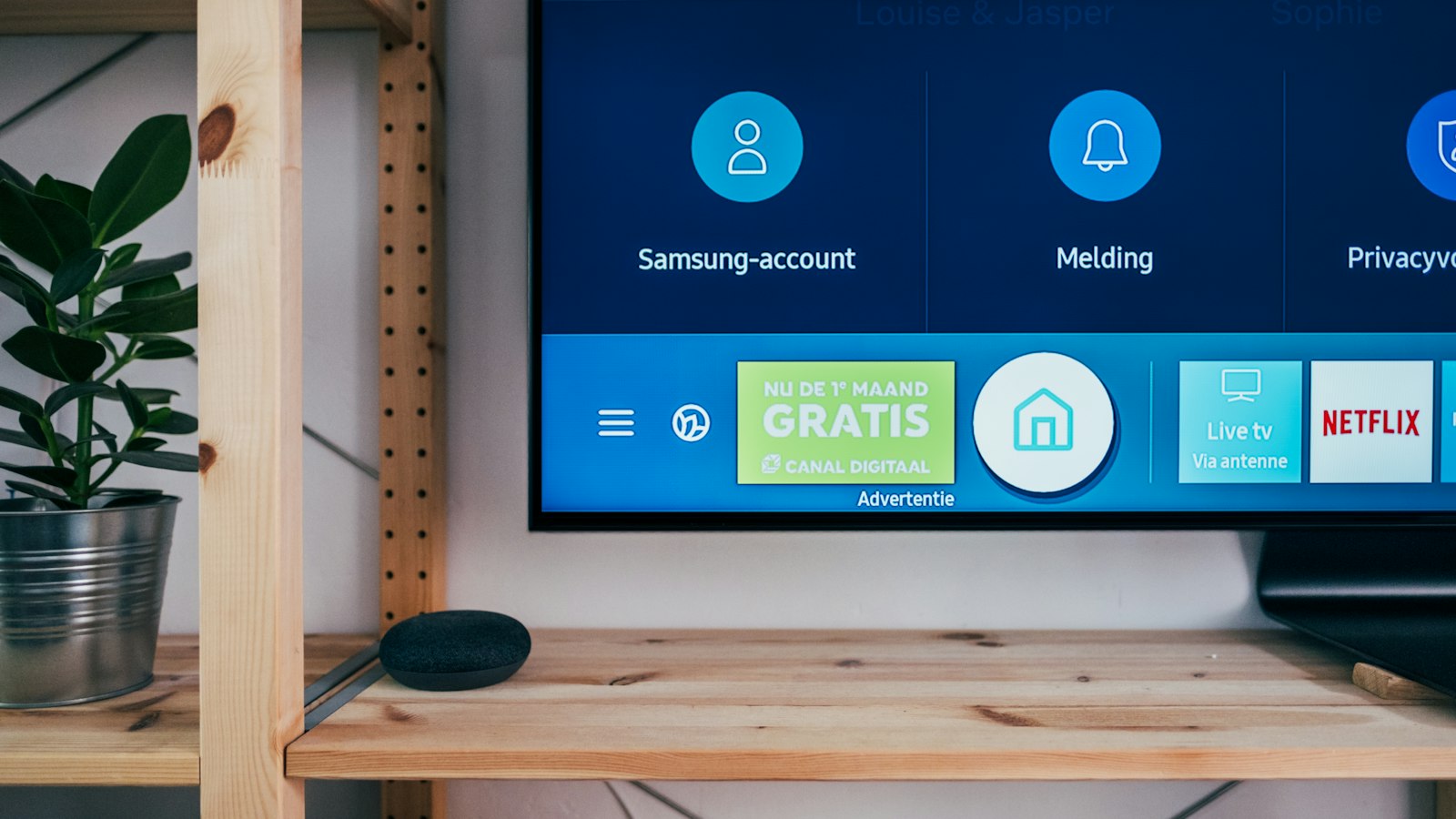
1. "I uploaded my playlist, but the app still shows nothing. Why?"
Almost always one of three things:
- The MAC address doesn't match. The address you entered on the website must be exactly the one shown on the TV. One wrong character sends the playlist to a different TV.
- The app wasn't restarted. Smart IPTV only fetches the playlist when it starts. Close the app completely, or switch the TV off and on, then open it again.
- "Save online" wasn't ticked. Without it, the playlist may not stay linked to the TV. Upload it again with that option enabled.
2. "It says 'Playlist loading failed'. What's wrong?"
The TV reached the website, but it can't load the playlist itself.
- Copy the M3U link again, in full. Long links are easily cut off when copying from WhatsApp or email. The end of the link often contains the essential parameters.
- Check your subscription. An expired or not yet activated subscription gives exactly this message.
- Test the link. Open it on a computer: if it downloads a file or shows a long list of text, the link works. If you get an error, contact your provider.
3. "The channels load, but the TV guide is empty."
Smart IPTV doesn't create a guide by itself. It needs an EPG link.
- Ask your provider for the EPG link (Devora TV includes it).
- Enter it in the EPG field on the Smart IPTV website, re-upload and restart the app.
- Give the guide a few minutes on first load. With thousands of channels, the first download takes a while.
4. "The TV guide is an hour off."
This is a time-zone issue, not a provider issue. Check that the TV's own clock is set to automatic and that the correct time zone is selected in the TV settings. It happens most often around the change between summer and winter time.
5. "Why does the picture keep freezing?"
Smart TVs usually have weaker Wi-Fi than phones or streaming sticks, and Smart IPTV plays exactly what the connection delivers.
- Connect the TV with a network cable if you possibly can. This fixes most freezing on smart TVs.
- Use 5 GHz Wi-Fi otherwise, and keep the router close.
- Restart the router if it has been on for months.
- Watch the timing. If it only freezes during big matches in the evening, the bottleneck is usually between your internet provider and the server. A good IPTV provider can move you to a less busy server.
6. "The app asks me to activate it. Do I have to pay again?"
Smart IPTV is free for a trial period. After that, the developer asks for a small one-time activation fee per TV. This is separate from your IPTV subscription and paid on the official Smart IPTV website, never on a site you reached through an advert or a message. After activating, restart the app.
7. "I reset my TV and now nothing works."
A factory reset or reinstall can give the TV a new MAC address. The playlist and activation are linked to the old one. Note the new MAC address shown in the app, upload your playlist again and contact the developer's support about moving the activation.
8. "Some channels work and others don't."
That's almost never your TV. If most channels play but a few don't, those specific streams are the problem. Note the channel names and send them to your provider. If whole groups fail, the playlist may be outdated: re-upload the latest link and restart.
9. "Can I use Smart IPTV on my Samsung TV?"
Availability on Samsung has changed over the years, and on many newer Samsung models Smart IPTV is no longer in the store. On those TVs, IBO Player is the best alternative. It works in a similar way (MAC address plus website) and also separates films and series neatly.
10. "The list is so long, it's slow. Can I make it faster?"
Yes. A shorter playlist loads faster, especially on older TVs.
- Ask your provider whether you can select only the countries or groups you watch.
- Use the channel numbers to zap directly instead of scrolling.
- If the TV is old and the app still feels slow, a low-cost Android TV stick with TiviMate or IPTV Smarters can be a big step up.
Smart IPTV settings worth checking
- Save online: always on when uploading, so the playlist stays linked.
- EPG link: filled in, so the guide works.
- TV clock: on automatic, so the guide shows the right times.
- Network: cable if possible, 5 GHz Wi-Fi otherwise.
When it's not the app
If you've worked through these answers, the TV is on a cable and the same channels keep failing, the problem is on the provider's side. A good provider responds quickly, checks your account and fixes the stream or switches your server. If you're always waiting for answers, that's a sign in itself.
Support that knows Smart IPTV
At Devora TV, our support team helps with Smart IPTV on LG and Samsung TVs every day, 24/7. Send us a photo of the screen and we'll tell you exactly what to change. Your subscription includes more than 50,000 channels and 200,000+ films and series, with an M3U link and EPG link that work straight away in Smart IPTV, from €12.99 per month or €79.99 for a full year. Want to test it on your own TV first? Start with a free 24-hour trial.
Updated on


